The dashboard I created for how to locate Starbucks using Tableau was selected for Viz Of The Day by Tableau. I was really delighted and proud to see my viz being selected for VOTD. Many viewers messaged me and told me how and why they liked my dashboard. It was the Google Map integration which was the spotlight for this dashboard.
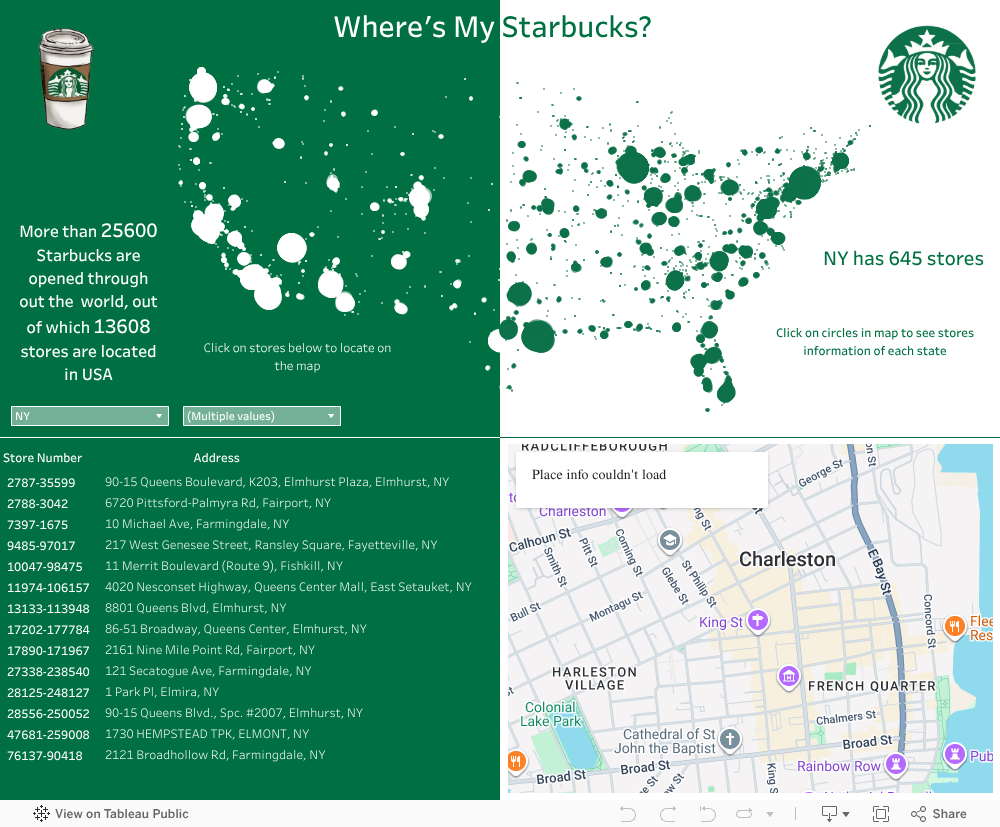
This article is about how to map your coordinates/ query with google map.
Step 1:
Check the URL link of google maps.
https://www.google.com/maps?parameters. After ? you have to specify each parameter. If you are using multiple parameters, append each of them using ampersand &. For example :
https://www.google.com/maps?q=New+York&z=15&t=m
Most of the URL link contains parameters like:
Full URL: https://www.google.com/maps/place/239+King+St,+Charleston,+SC+29401

I could have used Longitude and Latitude but since they were not pointing to exact location as they had only 2 digits after decimal pointing to same location. Precise location has many digits after decimal after decimal. So I thought of using Street Address, City and State/Province as my search parameter.
Since query uses + and & signs so I had to change my query string using a REPLACE function in Tableau.:


Step 3:
This calculated field will be used to create URL for google maps. But before that, we have to show the web object on the dashboard. For every action on text, the URL should change.
On blank screen drag and drop web object (press shift at same time for making it floating object).
Do not specify anything in Edit URL window. click OK

Step 4: Go to Dashboard in Menu => Actions => Add Actions => select URL


References:
This article is about how to map your coordinates/ query with google map.
Step 1:
Check the URL link of google maps.
https://www.google.com/maps?parameters. After ? you have to specify each parameter. If you are using multiple parameters, append each of them using ampersand &. For example :
https://www.google.com/maps?q=New+York&z=15&t=m
Most of the URL link contains parameters like:
- q : query to search for in google maps. You have make sure each space is replaced by plus sign. For ex- q=New+Delhi
Full URL: https://www.google.com/maps/place/239+King+St,+Charleston,+SC+29401
- t: type of map, either m (map) or h(satellite)
- z: zoom level. higher the number, higher will be zoom level
- output : embed. Use it to specify that you want to embed google map in tableau
Step 2:
In Starbucks dashboard, I had the following fields:

I could have used Longitude and Latitude but since they were not pointing to exact location as they had only 2 digits after decimal pointing to same location. Precise location has many digits after decimal after decimal. So I thought of using Street Address, City and State/Province as my search parameter.
Since query uses + and & signs so I had to change my query string using a REPLACE function in Tableau.:
Your new field output should like this:
Step 3:
This calculated field will be used to create URL for google maps. But before that, we have to show the web object on the dashboard. For every action on text, the URL should change.
On blank screen drag and drop web object (press shift at same time for making it floating object).
Do not specify anything in Edit URL window. click OK

Step 4: Go to Dashboard in Menu => Actions => Add Actions => select URL

Step 5: Specify URL link: https://www.google.com/maps?q= and from arrow buttion on right , select your calculated field (StreetCityState_Calc) so that URL will look like:
https://www.google.com/maps?q=<StreetCityState_Calc>
Click on Test Link if its working fine or not.
Step 6: You can append other parameters to make the map look better. Make sure you use & to append these parameters.
https://www.google.com/maps?q=<StreetCityState_Calc>&z=15&t=m&output=embed
References:
- https://developers.google.com/maps/documentation/urls/guide
- http://dataremixed.com/2013/06/how-to-embed-a-google-map-in-tableau/
- https://www.kaggle.com/etrpaul/starbucks/data
Comments
Post a Comment